Adding a gallery in Squarespace is a simple yet effective way to show off your portfolio to potential clients. While adding the gallery itself is simple, it’s also simple in design. This is where custom CSS code for styling your gallery can open a whole new realm of possibilities. In this article, I’ll walk through the basics of getting your gallery section set up and three different ways you can copy-and-paste CSS to style it and stand out against your competitors.
How to Add a Gallery Section in Squarespace 7.1 (Quick Guide)
Gallery sections act as their own row, rather than a block that can be moved around. They can support up to 250 photos depending on the layout, but they can’t support videos. Here’s a quick how-to on adding a gallery section to your Squarespace website.
1) On a new or existing page (pages other than a blog or event page), find where you want to place the gallery. Then click “Add Section”.

How to add a new section to your Squarespace website.
2) Scroll down to the Showcase section and select “Portfolio”. From there you can choose which gallery you want to use by clicking the desired layout.
Note: The sections with the i in the top right hand corner (shown below) are the gallery layouts. You can also add a gallery by adding a new page to your website and selecting “Gallery” from the sidebar.
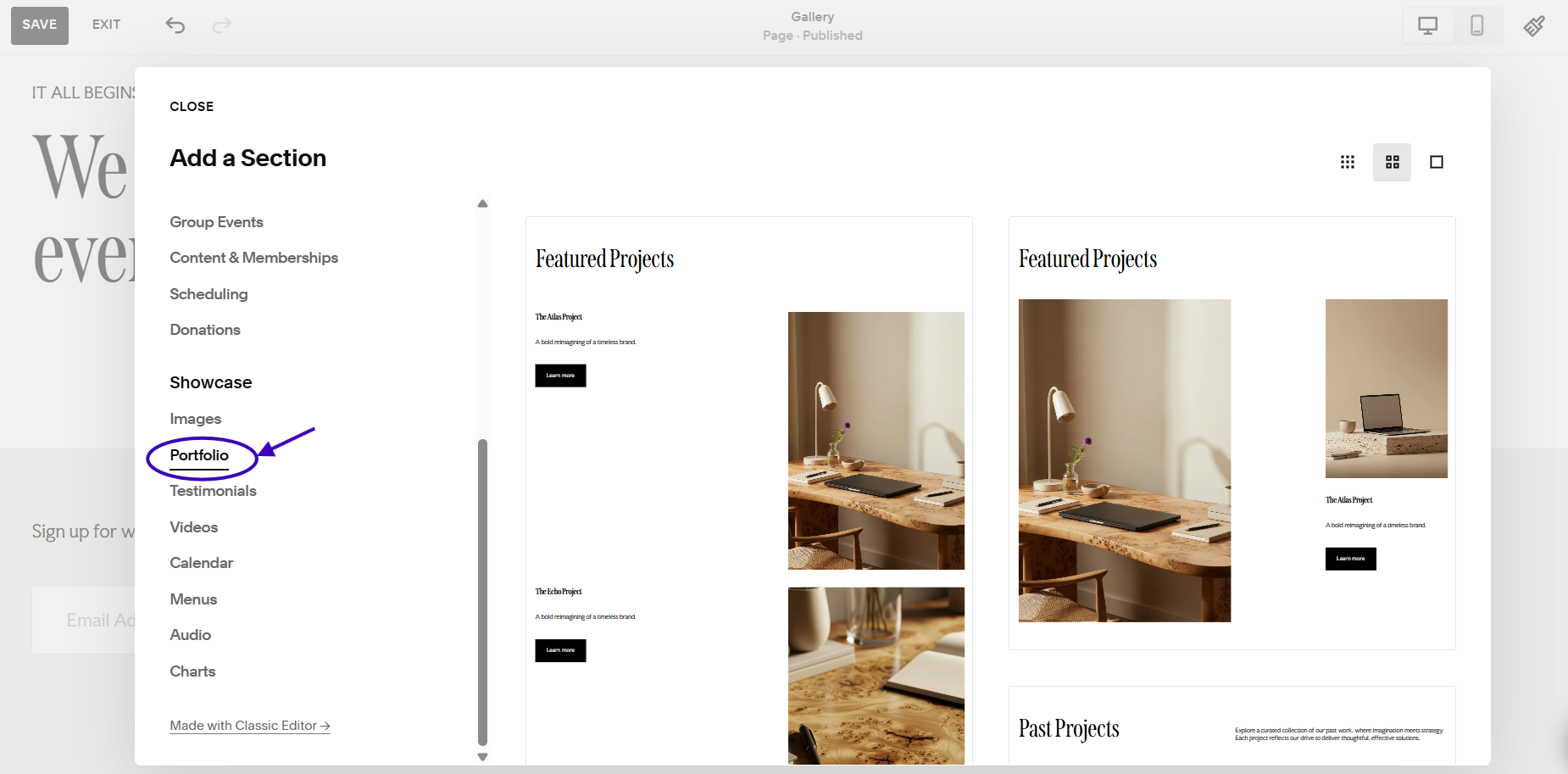
How to add a portfolio section
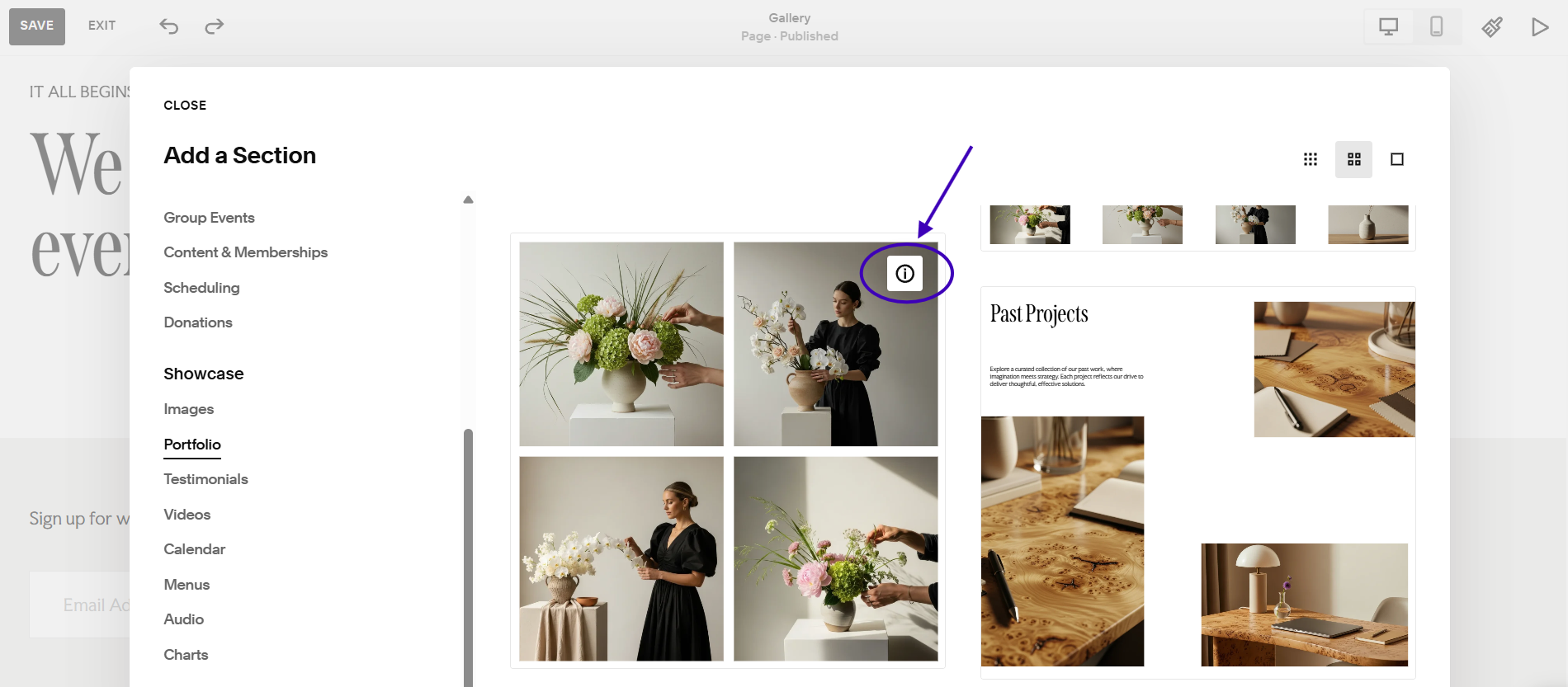
Symbol to look for with gallery sections specifically
3) To edit the images in your gallery section, hover over the section and select “Edit Gallery”. To edit the layout of your gallery, select “Edit Section” instead.
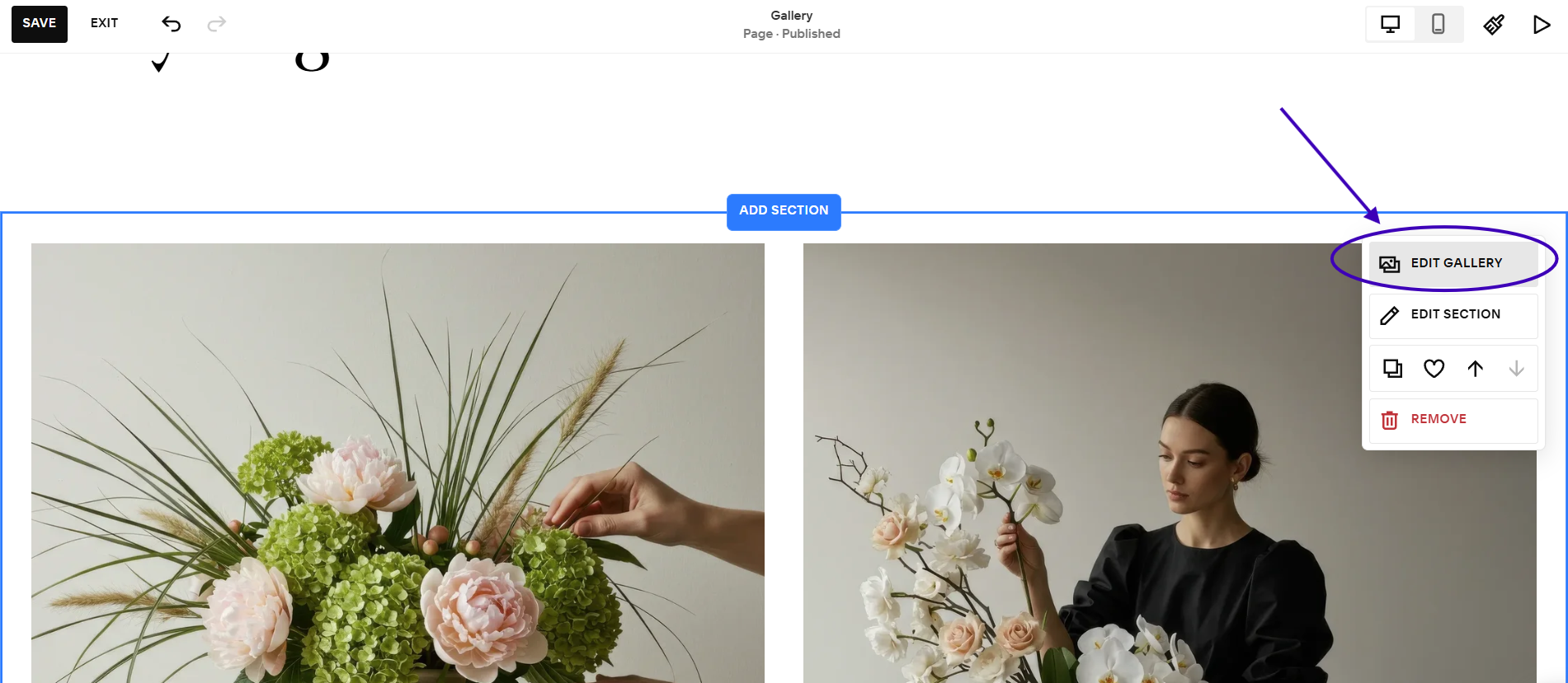
How to change pictures in Squarespace gallery section
4) Here you can choose the layout by changing the “Gallery Type”, “Width”, “Layout” details, and more.
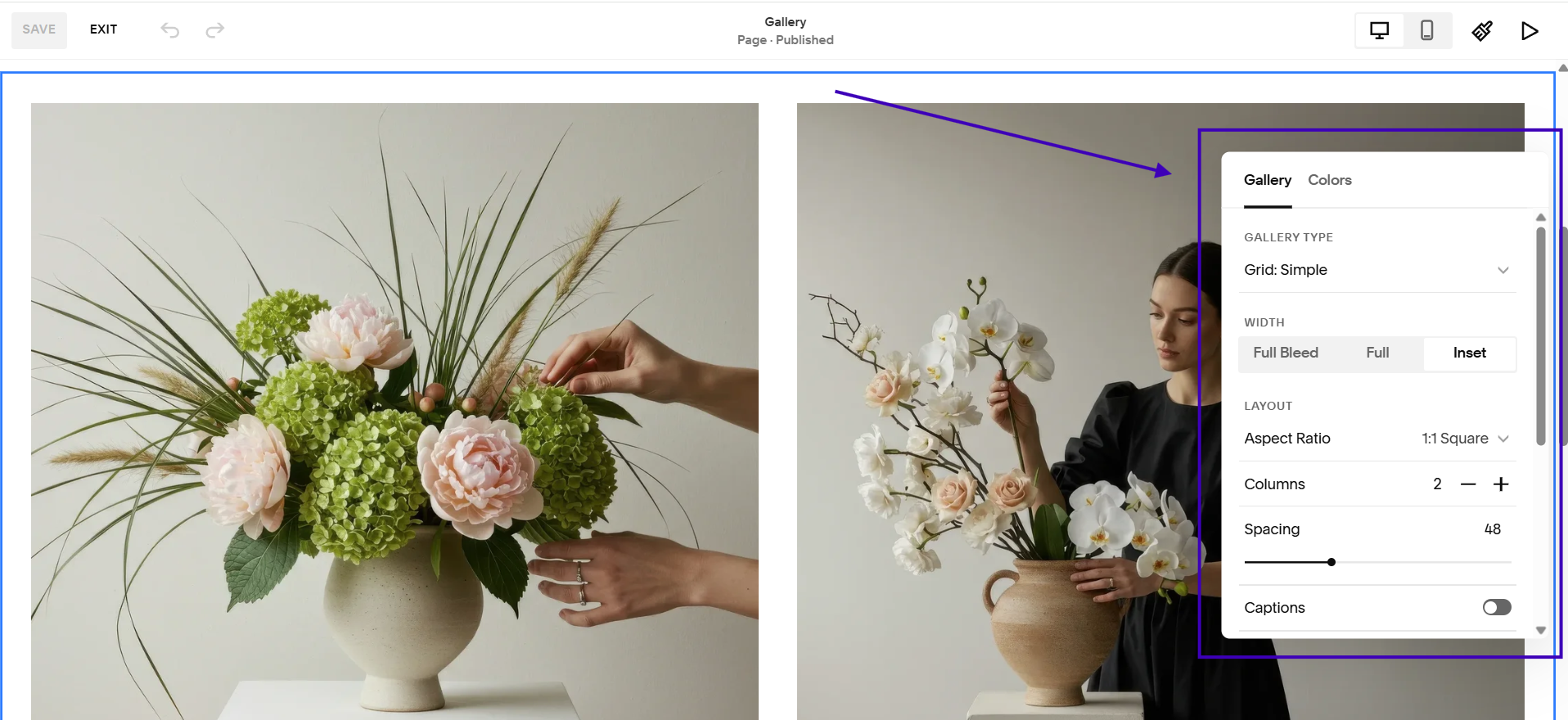
How to change layout of Squarespace gallery section
How to Add a Gallery Block in Squarespace 7.1
Gallery blocks are a little different than gallery sections in Squarespace. First off, they do support embedded videos. Since they’re blocks instead of full on sections, this gives you the flexibility to put text, buttons, and other blocks near and around the gallery. Gallery blocks can also be placed on pages where gallery sections aren’t supported, such as blog posts. Here’s a quick guide on how to add a gallery block to your Squarespace website.
1) On the page you’d like to have the gallery block, click “Add Section” and then “Add Blank” → “Section”.
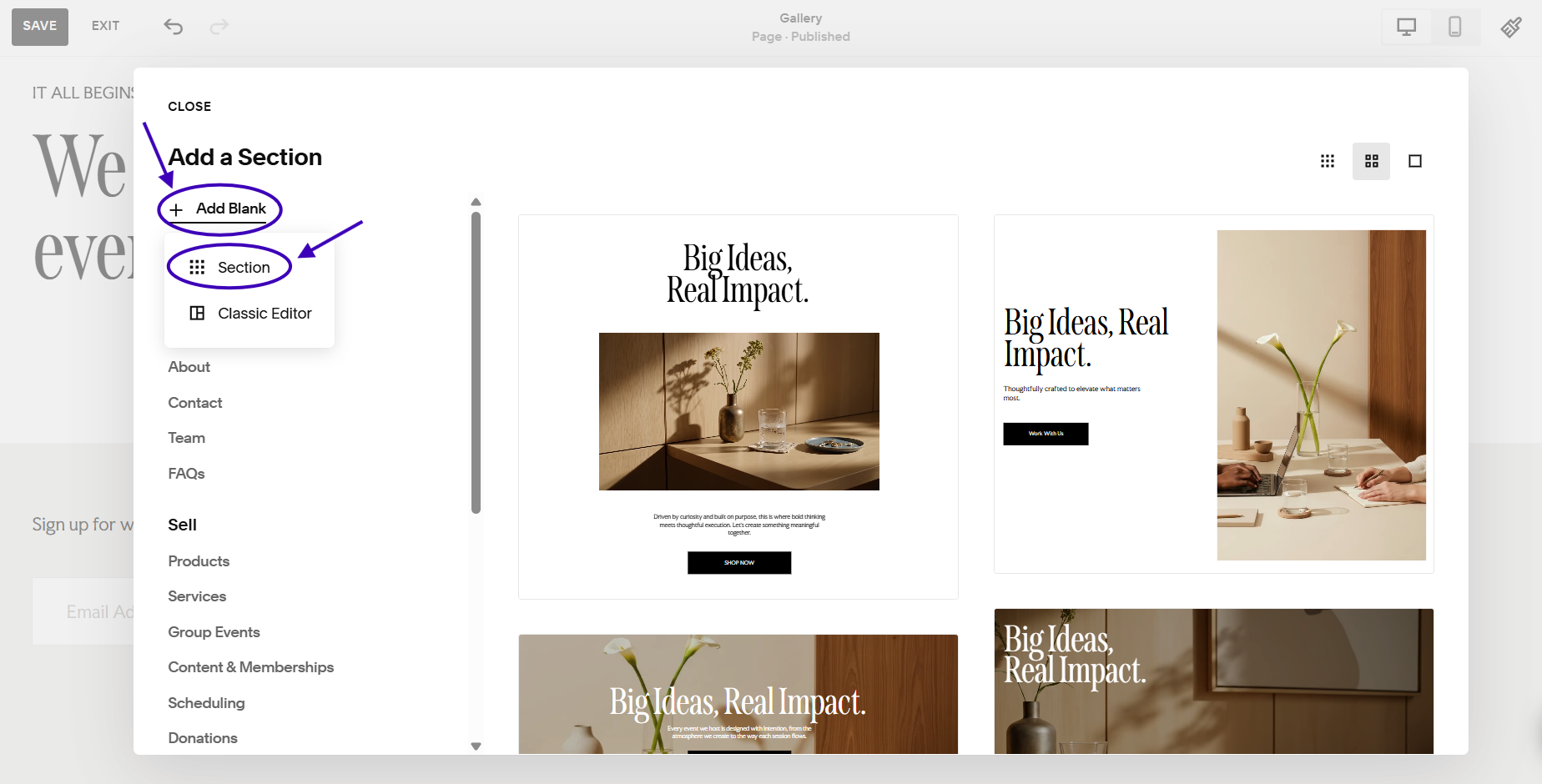
How to add a blank section in Squarespace
2) From there, hover over the section and click “Add Block”. Select “Gallery” as the block type.
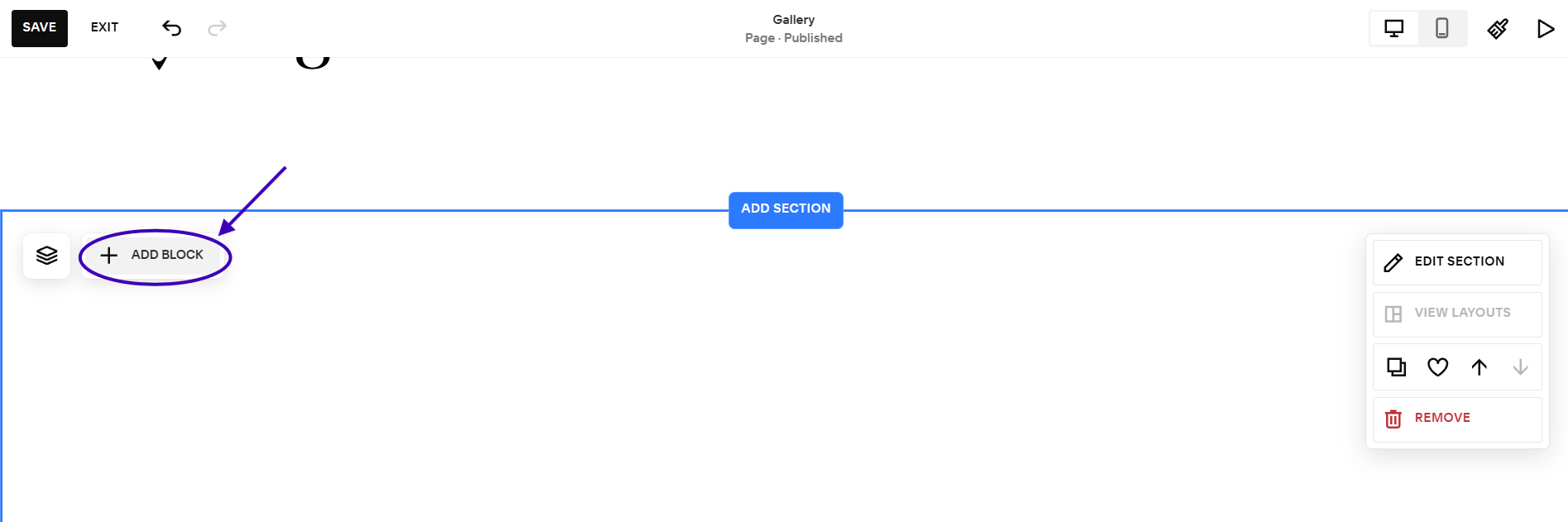
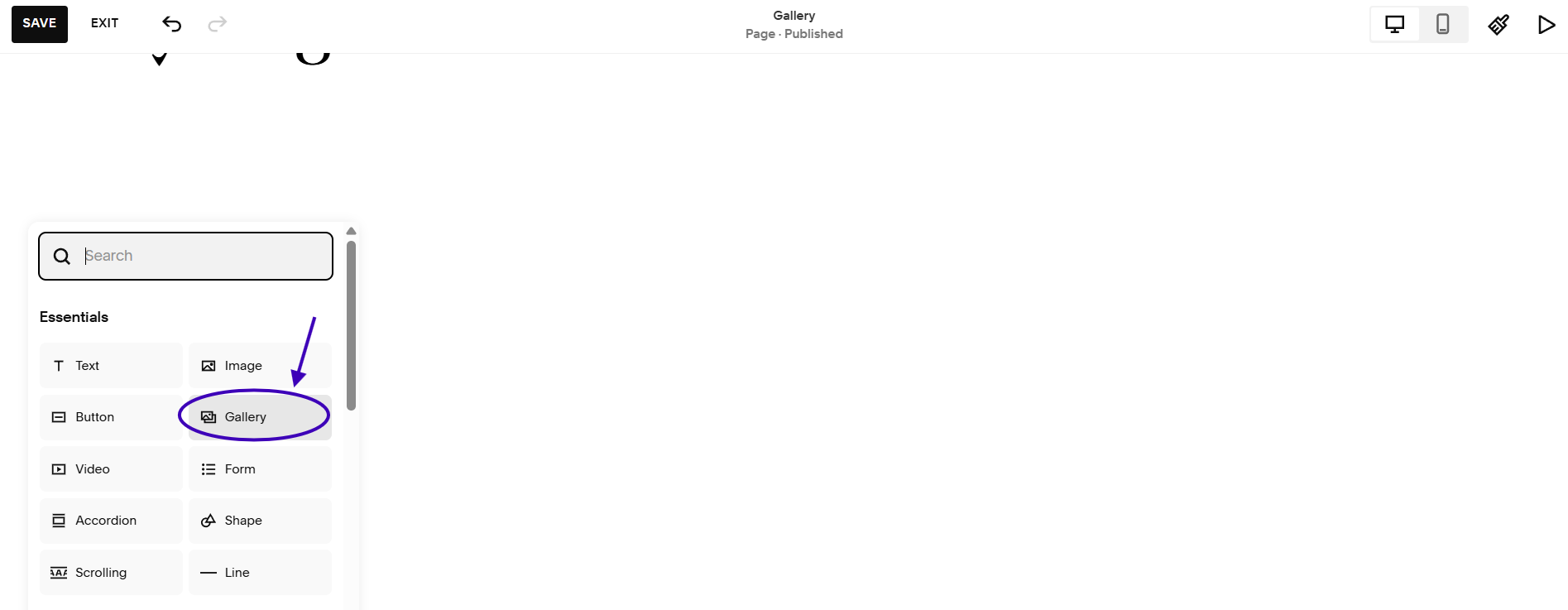
How to add a gallery block in Squarespace
3) To edit the gallery, click on it and then click on the pencil icon. Under the content tab, you’ll be able to upload your desired images. Under the design tab, you can make changes to the style and layout of the block.
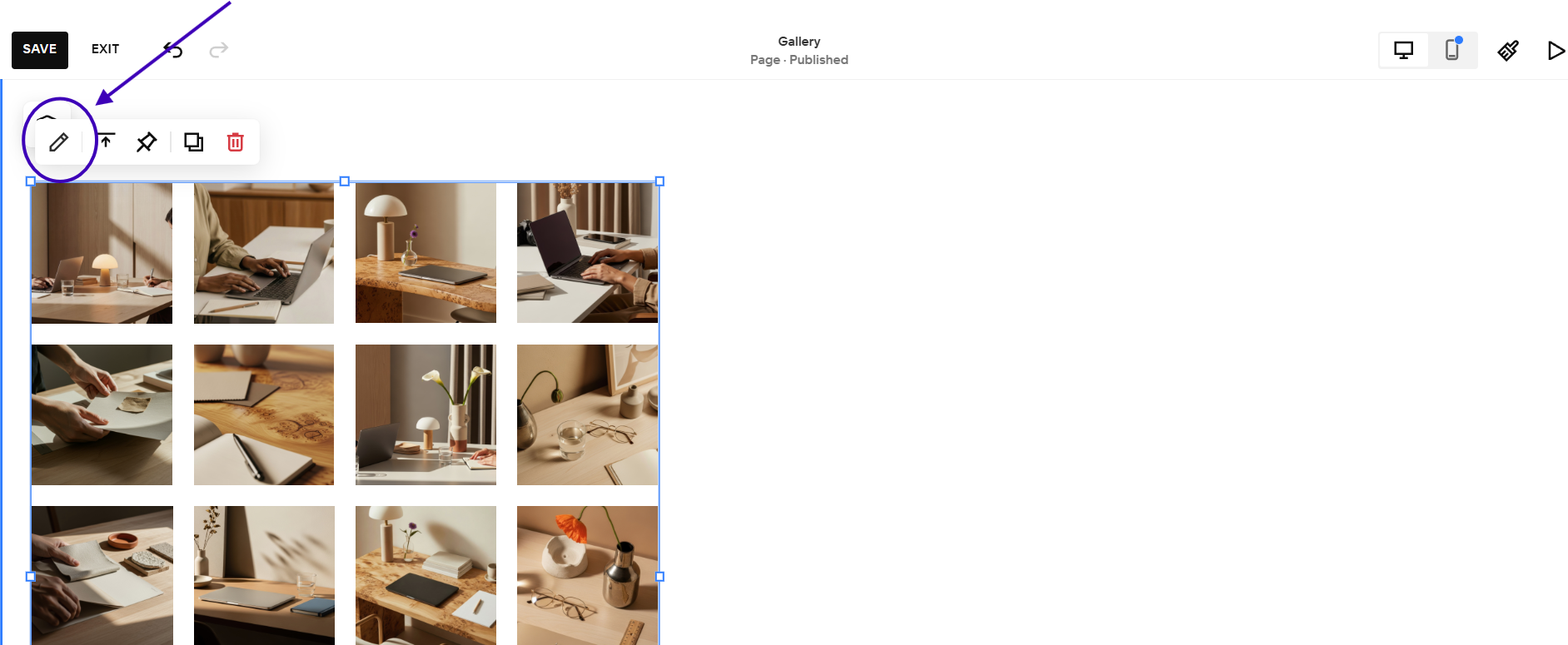
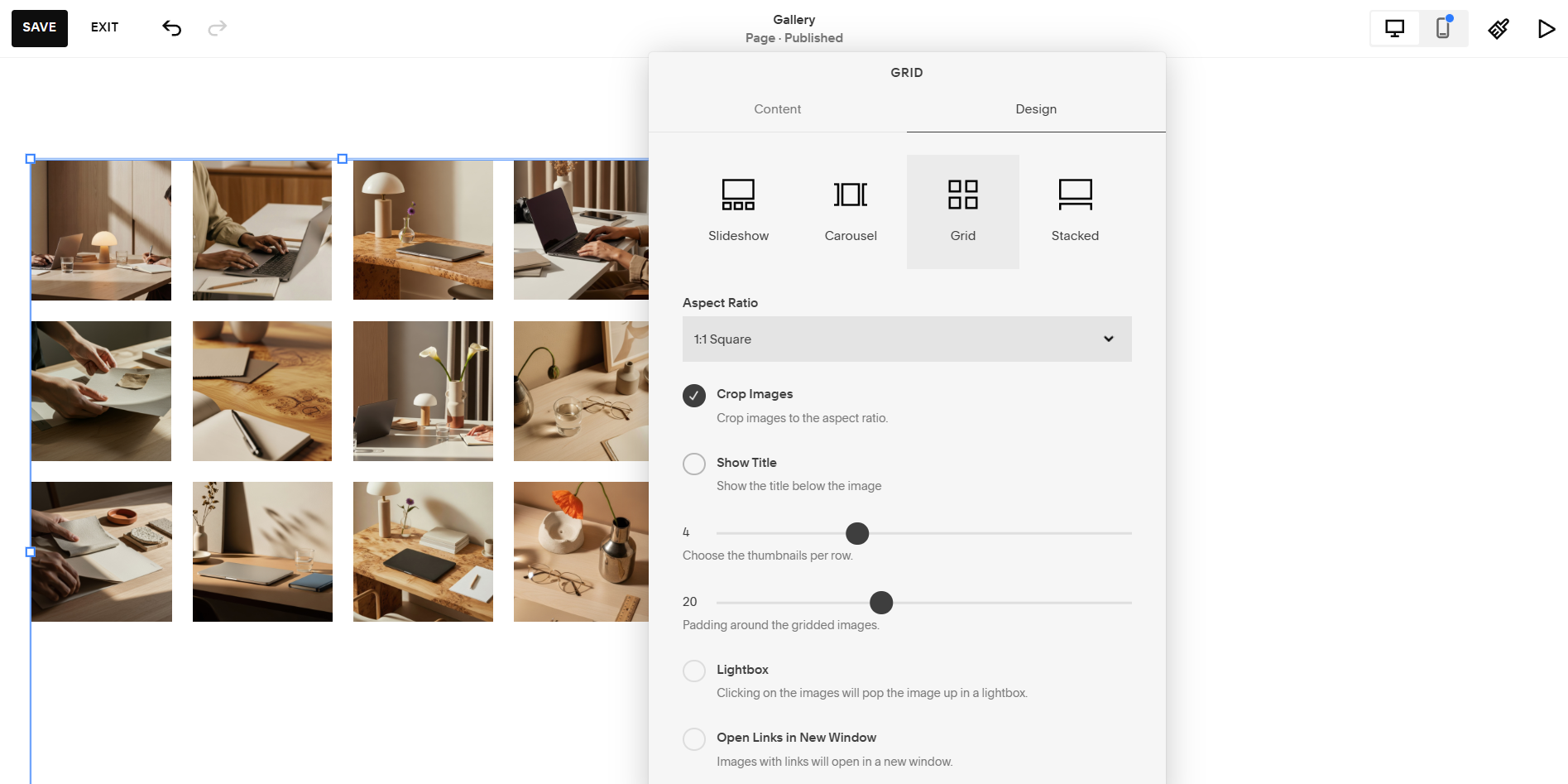
How to change pictures and layout of a gallery block in Squarespace
3 Ways to Customize Your Gallery Layout Using CSS
Customizing your Squarespace website with CSS is an effective way to personalize your design and further match it to your business. To add custom CSS code to your Squarespace site, go to Website → Pages. Then on the bottom of the left sidebar, go to Custom Code → Custom CSS. As promised, here are three simple but creative ways to customize your gallery section.
Before inserting code, make sure you are using a gallery section and not a gallery block, as this code is specifically for Squarespace gallery sections.
Add Rounded Corners
Rounding the corners of your gallery sections seems simple, but it’s a great way to make your portfolio look more intentional, modern, and editorial.
The Code Block:
/* Rounded Corners for Gallery - Code from Sunrise Edit Co. */
.gallery-grid-item {
position: relative;
overflow: hidden;
border-radius: 16px !important; /* Increase or decrease number for more or less rounding */
}

Squarespace gallery images with rounded corners
Add a Dark Overlay on Hover
This effect can give your portfolio a moodier feel, or it can just serve as a design touch that elevates your gallery by making it feel custom.
The Code Block:
/* Dark Overlay on Hover - Code from Sunrise Edit Co. */
.gallery-grid-item img {
transition: filter 0.4s ease-in-out !important;
}
.gallery-grid-item:hover img {
filter: brightness(0.6) !important; /* Decrease number to make darker */
}
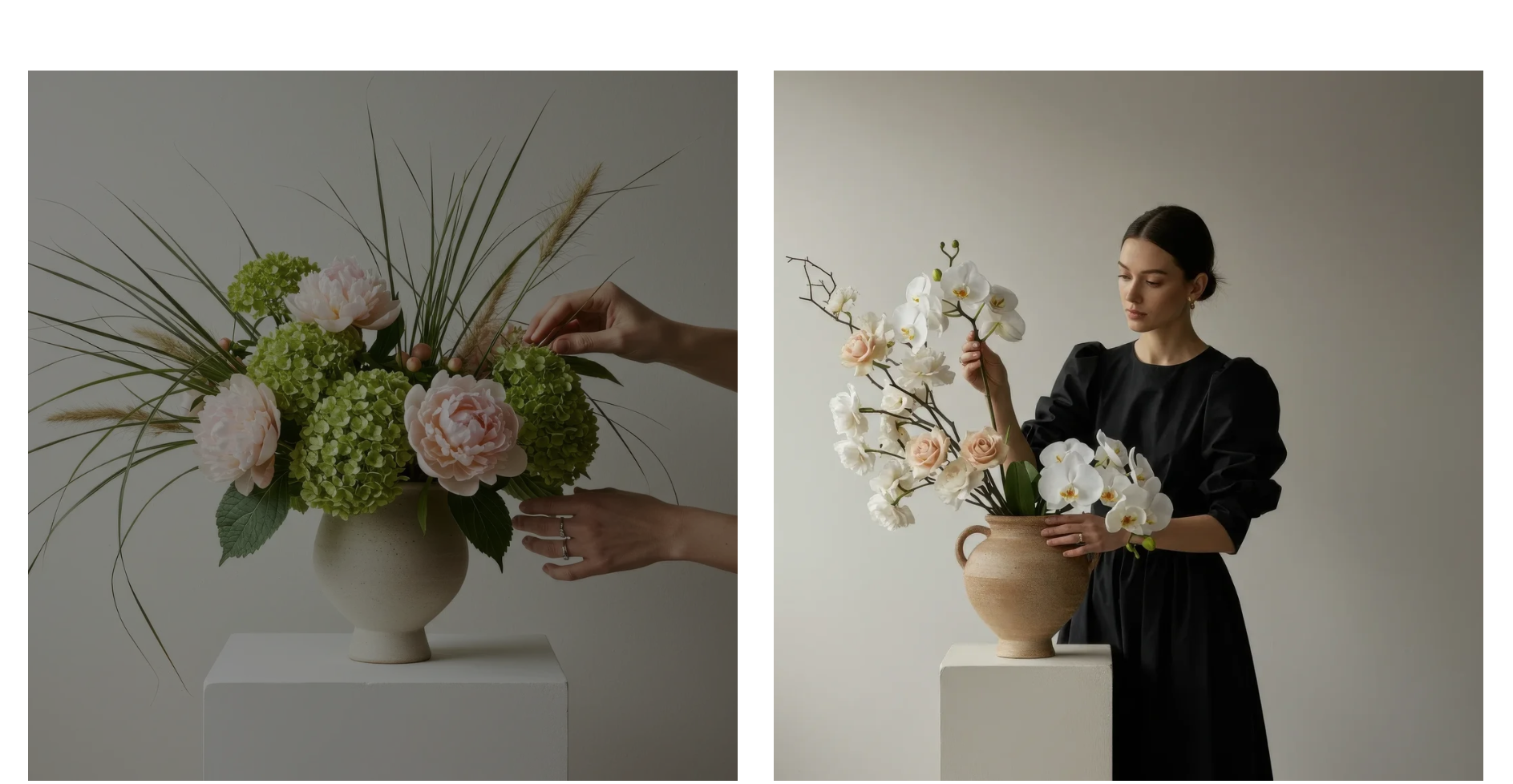
Squarespace gallery photos with dark overlay when hovering mouse
Add a Blur-to-Focus Transition on Hover
This effect is cool because it encourages your user to view your gallery (and website) longer by only showing them the full details of the image when they keep their mouse over it.
The Code Block:
/* Blur-to-Sharp on Hover - Code from Sunrise Edit Co. */
.gallery-grid-item img {
filter: blur(3px); /* Increase number to increase blur */
transition: filter 0.4s ease-in-out !important;
}
.gallery-grid-item:hover img {
filter: blur(0px) !important; /* Brings into focus on hover */
}

Squarespace gallery with blur to focus effect on images
Check Your Mobile View
Once you’ve added one of the custom codes from above, and whenever you add custom styling, make sure to review how it looks on the mobile version of your website. Your font sizes, spacing, and images should look clean but also be easy to navigate on a phone screen.
Free Website Audit
Loved these CSS codes but want to make sure your custom layout is completely optimized to convert visitors into clients? Let me look it over for you. Click here to get a free, personalized video website audit and let's make your online home shine!
☀︎ Musings From the Studio
Recently I’ve been learning about how important it is to rest. It’s arguably just as important as putting the work in, especially when you’re in a creative industry. Taking the time necessary to give the mind a break and recharge always helps me come back to my work feeling refreshed and inspired. So next time you feel stressed or like you’re forcing inspiration, take a brain break for a little bit. It might help you come back more productive.
Explore: